Passwords you can actually remember
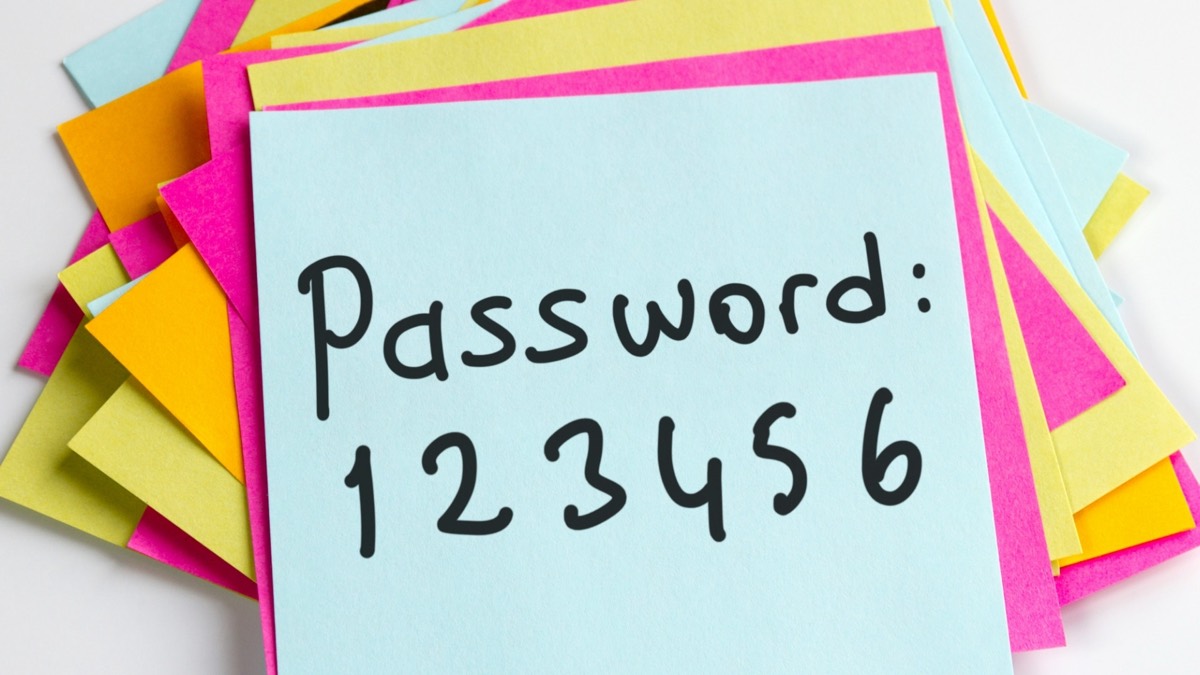
Most people use the same few passwords everywhere, often a pet's name and a birthday. The trouble is that when one website gets hacked, criminals try that password on your email and bank too. The good news: a strong password can actually be easier to remember than "Fluffy1952!"
What makes a password strong
The U.S. Cybersecurity and Infrastructure Security Agency (CISA) boils it down to three things: long (at least 16 characters), random, and different for every account.
The easy way: a passphrase
Instead of one word with symbols, string together four to seven unrelated words, like CactusPianoRiverToast. It's long, it's hard to guess, and it's easy to picture. Avoid song lyrics, quotes, and anything about you that's posted online.
Some websites insist on a number or a symbol too. If one does, add them at the end, like CactusPianoRiverToast7!
The easiest way: let your phone or computer remember them
A password manager creates a strong password for each website, saves it, and fills it in for you. You don't have to remember them: your phone or computer unlocks them with the same passcode, fingerprint, or face you already use. You likely already have one built in:
- iPhone, iPad, and Mac: the Passwords app (on older versions, Settings, then Passwords). When you create an account on a website, tap Use Strong Password.
- Android phones and the Chrome browser: Google Password Manager offers to save and suggest passwords as you sign in.
Saved passwords are protected by your device's passcode, fingerprint, or face, so make sure your phone has a passcode set.
- iPhone: open Settings, tap Face ID & Passcode (or Touch ID & Passcode), and tap Turn Passcode On.
- Android: open Settings, type Screen lock in the search bar, tap it, and choose PIN.
Add a second lock: two-step verification
Turn on two-step verification (sometimes called two-factor or multi-factor authentication) for your email, bank, and Facebook first. After you type your password, the site also asks for a code sent to your phone or a fingerprint. Even if a criminal gets your password, they can't get in without that second step.
Never share a sign-in code. If anyone calls or texts asking you to read them a code that was just sent to your phone, it's a scam, even if they say they're from your bank.
Before you turn it on, make sure each account has your current cell phone number. If you ever change your number or replace your phone, update your accounts first, or you could be locked out of your own email or bank.
Where to start this week
- Change your email password to a passphrase. Your email can reset every other password, so it matters most.
- Turn on two-step verification for email and your bank.
- Let your phone's password manager save passwords as you sign in to other sites. Over a few weeks, update the ones you reuse.
Prefer a notebook? That's fine. Keep it somewhere private at home, like with your important documents, rather than next to the computer. The bigger danger is online criminals, not someone in your home, so what matters most is a different password for each account. Avoid keeping passwords in a computer file named "passwords."
Source: CISA: Use strong passwords.