Set up your Medical ID and emergency contacts
If you're ever in an accident or can't speak for yourself, first responders often check your phone. A Medical ID lets them see your allergies, medications, conditions, and who to call, right from the lock screen, without your passcode. It takes about five minutes to set up.
What to include: medical conditions, medications and doses, allergies (especially to medicines), blood type if you know it, and one or two emergency contacts. Keep it short and current.
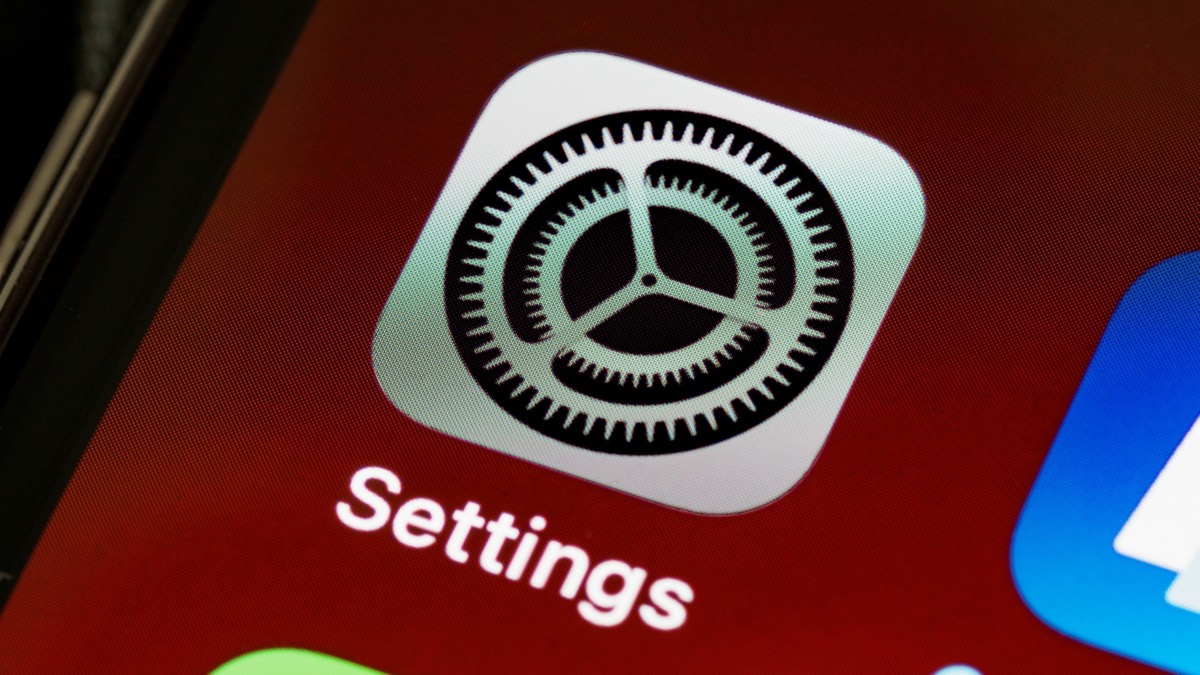
Don't see an option? Phones move their menus around after updates. Open Settings and type the name of the setting into the search bar at the top. (On an iPhone, if you don't see a search bar, swipe down a little in the middle of the Settings screen.)
iPhone
- Open the Health app (the white icon with a red heart).
- Tap your profile picture or initials in the top corner, then tap Medical ID.
- Tap Edit (or Get Started) and fill in your details.
- Under Emergency Contacts, tap the plus sign and choose someone from your contacts, then pick their relationship to you.
- Make sure Show When Locked is on, so responders can see it without your passcode.
- Turn on Share During Emergency Call so your Medical ID is sent to 911 automatically when you call (U.S. and Canada).
- Tap Done.
How someone sees it: on the lock screen, they swipe up or press the side button, tap Emergency, then Medical ID.
Android (Google Pixel and many others)
- Open the Safety app, or open Settings and search for Emergency information.
- Tap Your info, then Medical information, and fill in what applies.
- Go back, tap Emergency contacts, then Add contact.
- Turn on Show when locked (sometimes under Emergency info access).
Samsung Galaxy
- Open Settings and tap Safety and emergency.
- Tap Medical info and fill in your details. Turn on Show on Lock screen if you see the option.
- Go back, tap Emergency contacts, and add one or two people.
How someone sees it on Android: on the lock screen, they swipe up, tap Emergency (or Emergency call), then View emergency info.
Good to know
- Anyone who picks up your phone can read this information, so leave out anything you'd want kept private.
- Update it whenever your medications change. A quick look on your birthday each year is a good habit.
- Your phone also has an emergency SOS shortcut that calls 911 for you. It's good to know, partly because it's easy to set off by accident in a pocket or purse.
- iPhone: press and hold the side button and either volume button. If you keep holding, a countdown and alarm start, and the phone calls 911 when the countdown ends. Let go of the buttons before then to stop it.
- Android: on many phones, pressing the power button five times quickly starts a countdown, then calls 911. Tap Cancel to stop it. (On some phones you turn this on first: search Settings for Emergency SOS.)
If your phone calls 911 by mistake, don't hang up. Stay on the line and tell the dispatcher it was an accident. If you hang up, they may call back or send someone to check on you.
Sources: Apple: Set up your Medical ID, Google: Add emergency information, Samsung: Emergency features. Menu names vary by phone model and software version.